The short version
- Open the download link from your confirmation email on your iPad.
- Tap the ZIP in the Files app so it unpacks into a folder.
- Tap one PDF, tap Share, choose GoodNotes.
- Tap the tabs with your finger, write with your Pencil.
That is the whole thing. Everything below is the detail, app by app, plus what to do when a step does not behave.
What you downloaded
Right after checkout you see a Download button on the confirmation page, and the same link arrives by email from Million Dollar Habit (sent through Lemon Squeezy, our checkout). The link does not expire, so you can come back to it on any device.
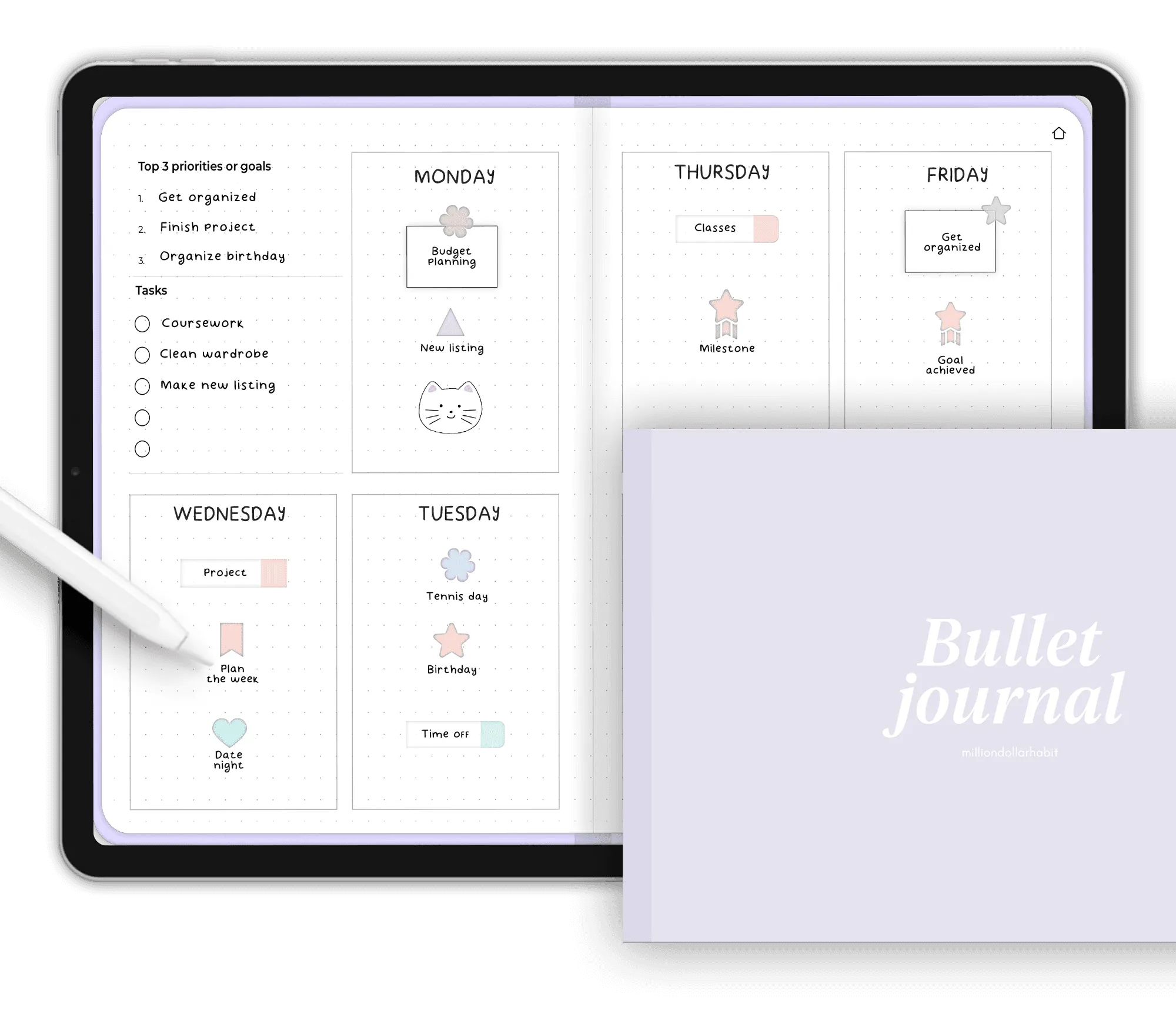
Most planners and notebooks download as one ZIP folder with every version of that planner inside. Each PDF is a complete planner; they differ only in color, orientation or the day your week starts. Here is exactly what is inside some of them:
2027-bullet-journal.zip
- 2027 Bullet Journal - Monday Start - @milliondollarhabit.pdf
- 2027 Bullet Journal - Sunday Start - @milliondollarhabit.pdf
Two PDFs. Import the week start you like.
2027-daily-planner.zip
- 2027 Daily Planner - Ink - Monday Start - @milliondollarhabit.pdf
- 2027 Daily Planner - Ink - Sunday Start - @milliondollarhabit.pdf
- 2027 Daily Planner - Rose - Monday Start - @milliondollarhabit.pdf
- 2027 Daily Planner - Rose - Sunday Start - @milliondollarhabit.pdf
- 2027 Daily Planner - Sand - Monday Start - @milliondollarhabit.pdf
- 2027 Daily Planner - Sand - Sunday Start - @milliondollarhabit.pdf
Six PDFs: three colors, each in Monday and Sunday start.
everyday-digital-notebook.zip
- Everyday Digital Notebook - @milliondollarhabit.pdf
Undated notebooks are one PDF.
Planner Labels Sticker Kit.zip
- Blush Pink / 01-section-work.png … 83 stickers
- Powder Blue, Sage Green, Latte Beige, Lilac Purple / the same 83 in each color
- Planner Labels Sticker Kit.collection
A folder of PNGs per color, plus one GoodNotes collection file that imports them all at once.
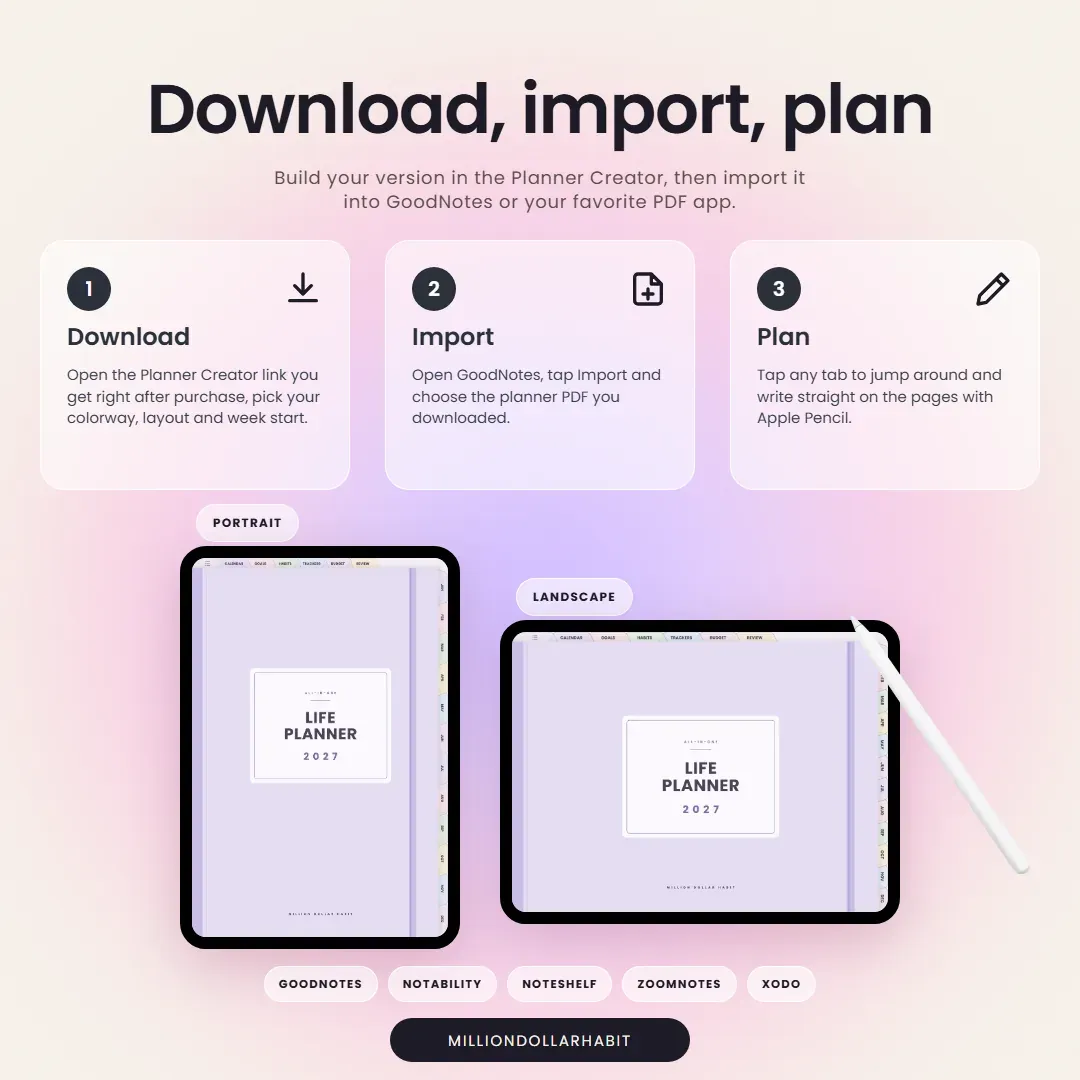
The 2027 Life Planner is different: it comes through the Planner Creator
The 2027 All-in-One Life Planner exists in 96 versions (8 colorways, portrait or landscape, three weekly layouts, Monday or Sunday start), so instead of a 1.4 GB folder you get a link to the Planner Creator and a password in your order confirmation.
- Open the Planner Creator link and enter the password from your confirmation email.
- Choose your colorway (Rainbow, Midnight, Teddy, Cool, Silver, Pink, Cinnamon or Denim), then portrait or landscape, then your weekly layout, then Monday or Sunday.
- Tap Download. The PDF opens from Google Drive; tap the download icon, then save it to Files or open it straight in GoodNotes.
Your file will be named like 2027 Life Planner - Teddy - Portrait - Vertical - Monday - @milliondollarhabit.pdf, so you always know which version you have. A Life Planner PDF is around 15 MB and 709 pages, so give the download a moment on slow Wi-Fi. You can come back for another version at any time.
Step 1: Get the file onto your iPad
The easiest route is to open the confirmation email on the iPad itself and tap the download button there. Safari saves the file to the Files app, in iCloud Drive › Downloads (or On My iPad › Downloads, depending on your settings). You will see a small download arrow in Safari's address bar while it saves.
If you downloaded on another device first:
- From a Mac: AirDrop the ZIP or the PDF to the iPad, or drop it into iCloud Drive and open Files on the iPad.
- From Windows or Android: put the file in Google Drive, Dropbox or OneDrive, open that app on the iPad, then use its share button to save to Files.
- From an iPhone: just open the email on the iPad instead; the link works anywhere.
Step 2: Unzip the folder
Note apps cannot import a ZIP, and this is the single most common reason an import fails (“unsupported file type”). Unzipping takes one tap:
- Open the Files app and go to Downloads.
- Tap the ZIP once. iPad unpacks it on the spot into a folder with the same name, right next to it.
- Open the folder. You will see the PDFs listed above (or the color folders, for a sticker kit).
Tap a PDF to preview it; Files shows the pages so you can check the color and week start before you import. You can delete the ZIP once the folder is there.
Downloaded a single PDF, like the Life Planner from the Planner Creator? There is nothing to unzip. Go straight to your app below.
Step 3: Import into GoodNotes
GoodNotes is the app the planners are designed and tested in, so if you have not picked an app yet, pick this one. These steps are for GoodNotes 6 on iPad; GoodNotes 5 is the same with the import button in the same place.
Option A: Share from Files (the quickest)
- In the Files app, tap the PDF you want, for example 2027 Bullet Journal - Monday Start - @milliondollarhabit.pdf.
- Tap the Share icon (the square with an arrow, top right).
- In the app row, tap GoodNotes. If it is not there, scroll the row to the right or tap More.
- Choose Import as New Document. GoodNotes opens with the planner on screen.
Option B: Import from inside GoodNotes
- Open GoodNotes and go to the Documents tab.
- Tap the + New tile (top left of your library).
- Tap Import and find the PDF in Downloads, inside the folder you unzipped.
- Tap the file. It appears in your library and opens.
Then: make the tabs work
- Tap tabs with your finger. In GoodNotes 6, hyperlinks respond to a finger tap while the Apple Pencil keeps writing, so you never jump pages by accident.
- In GoodNotes 5, links only work in read-only mode: tap the pencil icon at the top right to leave editing, then tap the tab. Or press and hold the tab and choose Open Link.
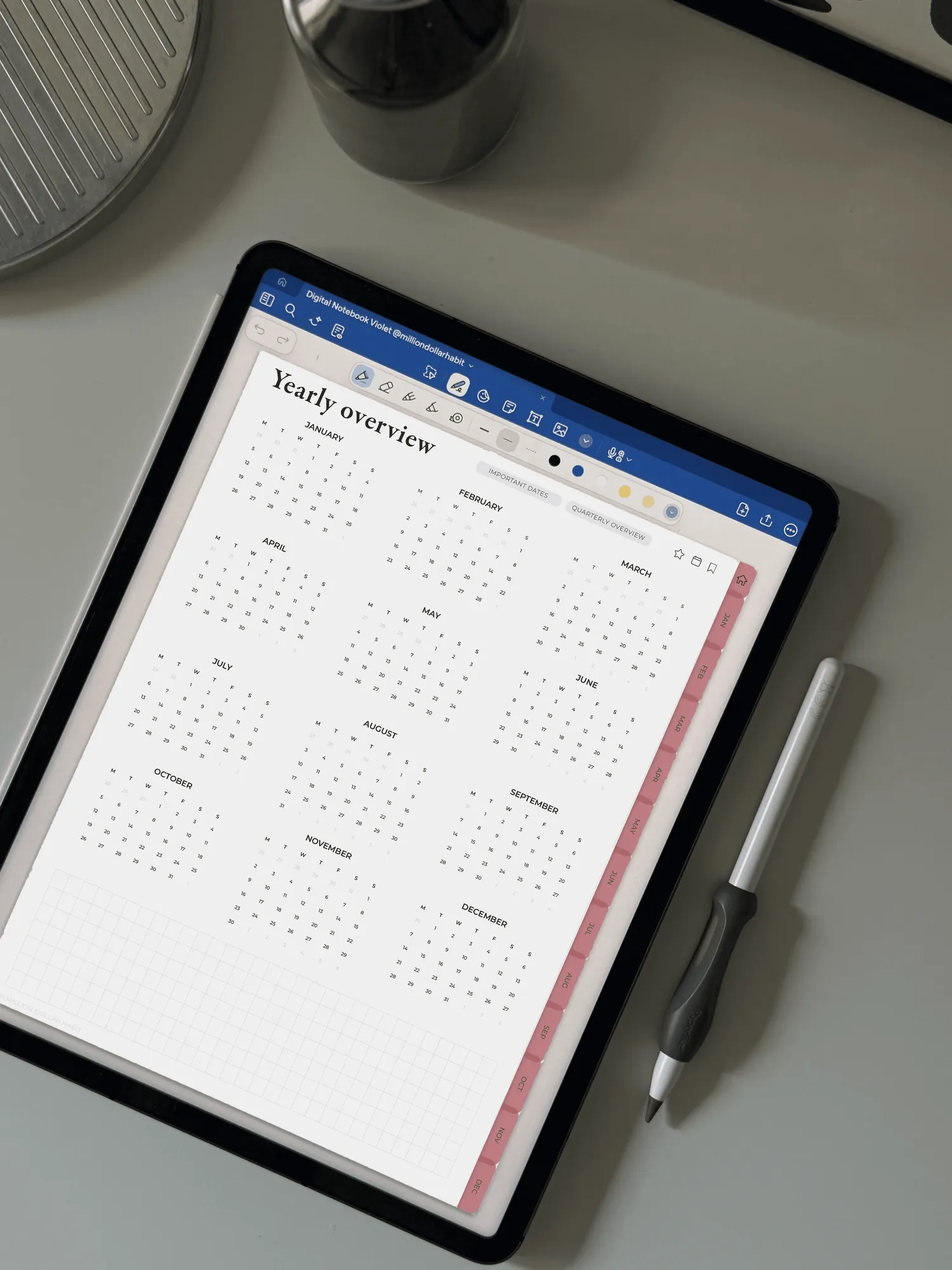
- Every planner has month tabs down the side and section tabs along the top, plus an index page. Tap a month, tap a week, tap a day; tap the planner name or index to get back.
Stickers in GoodNotes: import the collection file
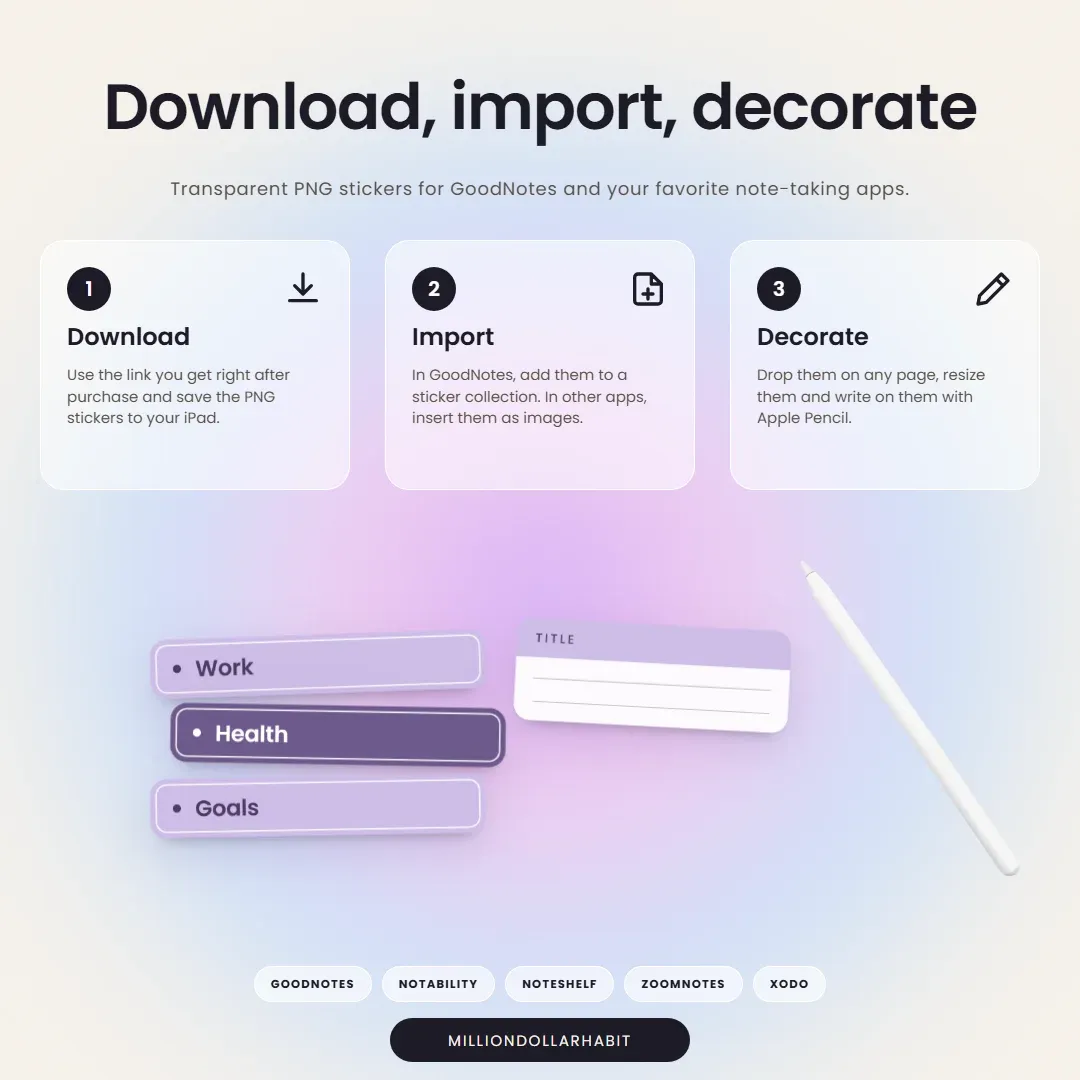
Every sticker kit from the shop includes a GoodNotes .collection file next to the PNG folders. It adds the whole kit to GoodNotes' sticker tool (called Elements) in two taps:
- In Files, open the unzipped kit folder and tap Planner Labels Sticker Kit.collection.
- Tap Share, choose GoodNotes. GoodNotes adds the stickers as a new collection.
- In any document, tap the Elements tool (the sticker icon in the toolbar), open the collection, and tap or drag a sticker onto the page. Resize it from the corners; write on it with your Pencil.
Prefer to add your own? In the Elements tool tap + to create a collection, then add PNGs from Photos (save them from Files to Photos first). Both ways, the stickers stay in GoodNotes for every planner you own.
Notability, Noteshelf, Plannora and Android
The planners are standard PDFs with built-in links, so they work in any app that annotates PDFs. These are the ones we test; the import step is nearly identical everywhere, and the one thing that varies is how each app treats a tap on a link.
Notability
- In Files, tap the PDF, tap Share, choose Notability, then Import. (Or in Notability tap the Import icon at the top of your library and pick the file.)
- Choose the subject it should live in. The planner opens as a new note.
- Tap tabs with your finger. If a tab selects or scribbles instead, pick the hand tool (or lock the note to read-only in the share menu) and tap again.
Noteshelf
- Share the PDF from Files to Noteshelf, or tap + in Noteshelf and choose Import.
- Open it. Turn on Read only (the pencil-slash icon) to tap links, and turn it off to write.
ZoomNotes and Xodo work the same way: import the PDF, write with the Pencil, tap links with the hand or read-only mode on.
Plannora, our own iPad app
Plannora can import your planner two ways. PDF keeps it exactly as it is, as a notebook you write on. Planner reads the tabs and links and rebuilds it as a native Plannora planner with real date tabs and your calendar on the page.
- On the Home screen tap +, then Import, and pick the PDF. (Sharing from Files to Plannora works too.)
- Choose the Import Type, PDF or Planner, and tap Continue.
- Tap links with your finger; the Pencil always writes.
Android tablets
Digital planners are PDFs, so a Samsung Galaxy Tab or any Android tablet works with a PDF-annotation app. Samsung Notes (tap Import in its menu and choose the PDF), Penly and Xodo all import the file from your Downloads or Google Drive. Links are tapped with the hand tool or in view mode, and GoodNotes also has an Android version with the same import steps as above.
Fonts and widgets
Fonts come as two files, .otf and .ttf. On a computer, double-click one to install it. On iPad, use a font installer such as iFont or AnyFont from the App Store: open the font file with it, install the profile it creates (Settings › General › VPN & Device Management), and the font appears in apps that let you choose fonts, including GoodNotes' text tool.
Widgets (sticky notes, trackers, labels, to-do lists) are transparent PNGs, exactly like stickers: add them to a GoodNotes collection or insert them as images, then resize and write on them.
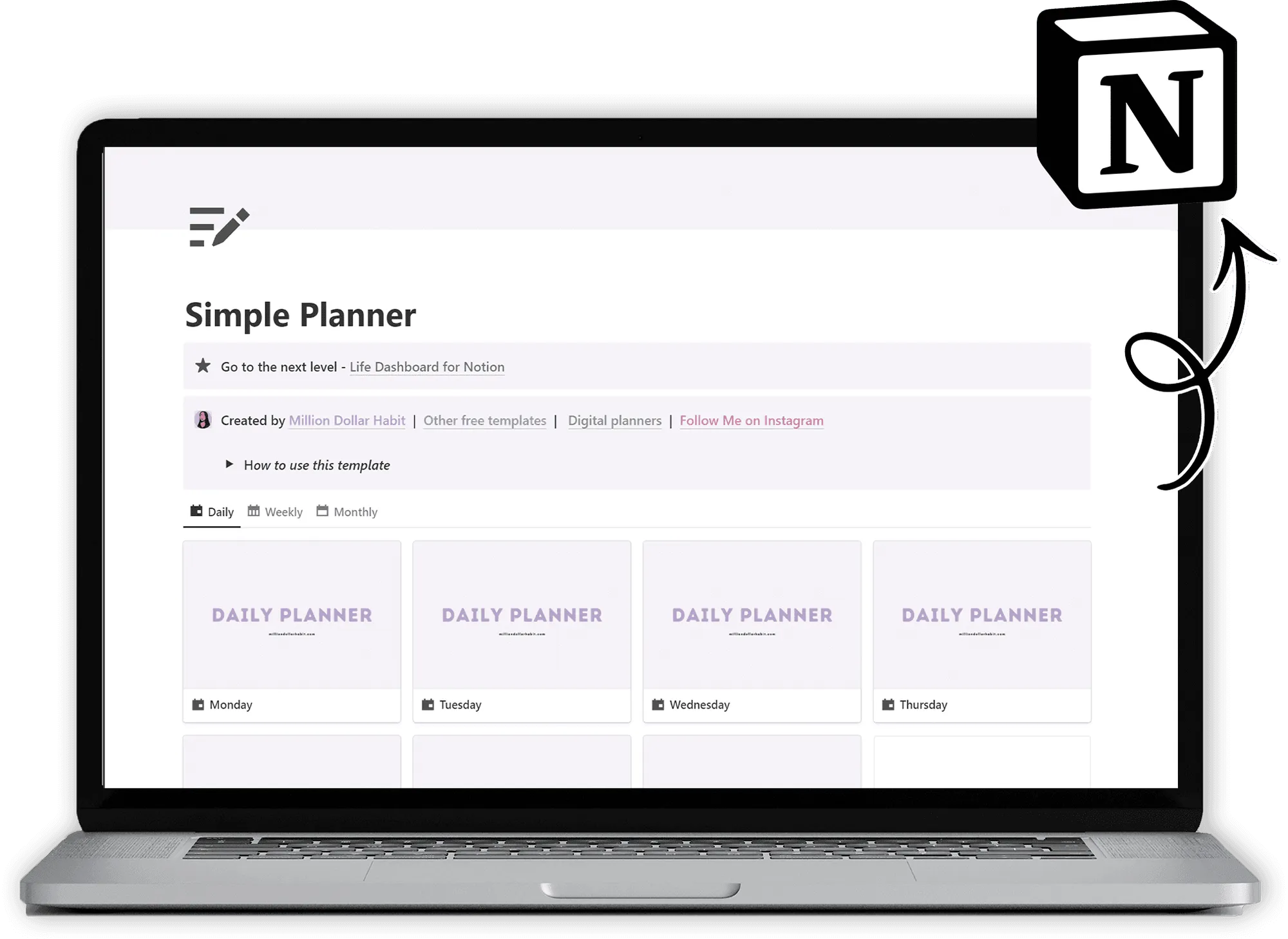
Notion and OneNote templates
These are not PDFs, so there is no file to import.
Notion
- Your download is a link to the template. Open it on any device, logged in to Notion (the free plan is fine).
- Tap Duplicate in the top right corner and choose the workspace it should go to.
- The template is now yours, in your sidebar. Each template comes with pre-filled examples and a setup guide inside.
OneNote
OneNote planners come as a OneNote notebook you open in OneNote on Windows, Mac, iPad or Android, with instructions in the download. Writing works like any OneNote page, and the links move you between sections. If a link is slow to respond on iPad, give OneNote a moment to sync the notebook first. Want to use a GoodNotes PDF planner in OneNote instead? It opens as a printout you can write over, but the tabs will not link, so we do not recommend it.
Using your planner day to day
- Pen on, tabs off. Write with the Pencil; tap tabs with a finger. If you keep hitting tabs while writing, zoom in a little so the page fills the screen.
- Need an extra page? In GoodNotes, tap the page thumbnail (or the … menu) and choose Duplicate. Every planner also has duplicatable notebooks and templates near the end, reached from the index.
- Changing your mind about the color or week start? Import the other PDF from your folder as a new document. Your writing stays in the first one; GoodNotes can copy pages between the two with Lasso › Copy, if you want to move a week over.
- Tap a time, it is in your calendar. The 2027 Life Planner's daily pages link each hour to Apple Calendar, Google Calendar or Reminders through one free Shortcut. The planner's own instruction page links to it: install it once on the iPad, and from then on tapping a time slot adds that event.
- Back it up. Turn on iCloud sync in your app's settings, so the planner and your handwriting follow you to a new iPad.
Troubleshooting
“Unsupported file type” or the file will not open
You are trying to import the ZIP. Go back to Files, tap the ZIP once so it unpacks, open the folder and import a PDF from inside it.
The tabs do not do anything
Tap with your finger, not the Pencil. In GoodNotes 5, Noteshelf and most other apps, links only work in read-only mode: leave editing first (the pencil icon), then tap. In Notability, pick the hand tool. In GoodNotes 6 and Plannora, a finger tap works at any time.
I cannot find the download in Files
Open Files and look in Recents first. Safari saves to iCloud Drive › Downloads by default; you can see or change that in Settings › Apps › Safari › Downloads. If you tapped the link in the Mail app, the file may be in On My iPad › Mail. Tap and hold the file and choose Move if you want it somewhere tidier.
The download is slow, or GoodNotes takes a while to open it
That is normal for the bigger planners. The Life Planner is 709 pages and about 15 MB; GoodNotes builds its thumbnails the first time it opens, and after that it is instant. Keep the app open until the pages appear.
I imported the wrong week start or color
Nothing is lost. Go back to the unzipped folder and import the other PDF. Delete the first one from your library if you have not written in it yet.
My stickers look blurry or stretched
The stickers are exported at three times their size, so they stay sharp when you make them bigger. If one looks stretched, resize it from a corner handle (not a side handle) so it keeps its shape, and make sure you added the PNG itself rather than a screenshot of it.
The Planner Creator password does not work
The password is in your order confirmation email, in the download section. Copy it rather than typing it, and check there is no space at the end. Still stuck? Email us with your order email address and we will send it again.
I bought it years ago and cannot re-download
Older orders may be archived. Send us the email address you ordered with, or the order number, and we will restore access where we can.
FAQ
More questions, answered
Which file do I import if the folder has several PDFs?
Only one at a time. Every PDF in the folder is a complete planner, just in a different color, orientation or week start. Pick the one you want to use now (most people start with the Monday Start file in their favorite color) and import only that one. The others stay in Files in case you change your mind.
Can I import the same planner into two apps?
Yes. Your files are yours to use on your own devices, so you can import the PDF into GoodNotes and Notability, or on an iPad and an iPhone. Each app keeps its own copy of your writing, though; they do not sync with each other.
I lost the download email. Can I get my files again?
Search your inbox for “Million Dollar Habit” or “Lemon Squeezy”, and check spam. The email has a download button that still works. If you cannot find it, email hello@milliondollarhabit.com with the email address you ordered with and we will send the link again.
Do I need a specific version of GoodNotes?
No. The planners work in GoodNotes 5 and GoodNotes 6, on iPad, iPhone, Mac, Windows and Android. The steps on this page are for GoodNotes 6 on iPad; in GoodNotes 5 the import button sits in the same place, and links are tapped in read-only mode.
Does the planner work on an iPhone or a Mac?
Yes, it is a PDF, so it opens anywhere GoodNotes, Notability or another PDF app runs. The pages are designed for an iPad screen, so an iPhone is best for checking your week, not for writing. On a Mac, GoodNotes syncs the same planner you use on the iPad.
Can I use the 2027 planners before January?
Yes. The dated pages start in January 2027, but every planner also has undated pages, notebooks, trackers and goal pages you can use straight away.
Can I print it instead?
You can print any page from GoodNotes or your PDF app, though the planners are designed for the screen: the tabs and links do nothing on paper, and the colors are made for a backlit display.