Bullet journaling looks “creative” on Instagram, but the real reason it works is much simpler: it’s a fast system for capturing tasks, events, and notes—and reviewing them often enough that your life doesn’t turn into a pile of open loops.
This guide covers:
What a bullet journal is (the actual method, and the aesthetic)
The core BuJo tools: rapid logging, logs, collections, signifiers, migration
How to set up a digital bullet journal in GoodNotes, Plannora, or Notability
A step-by-step workflow to use the Million Dollar Habit Digital Bullet Journal without getting lost
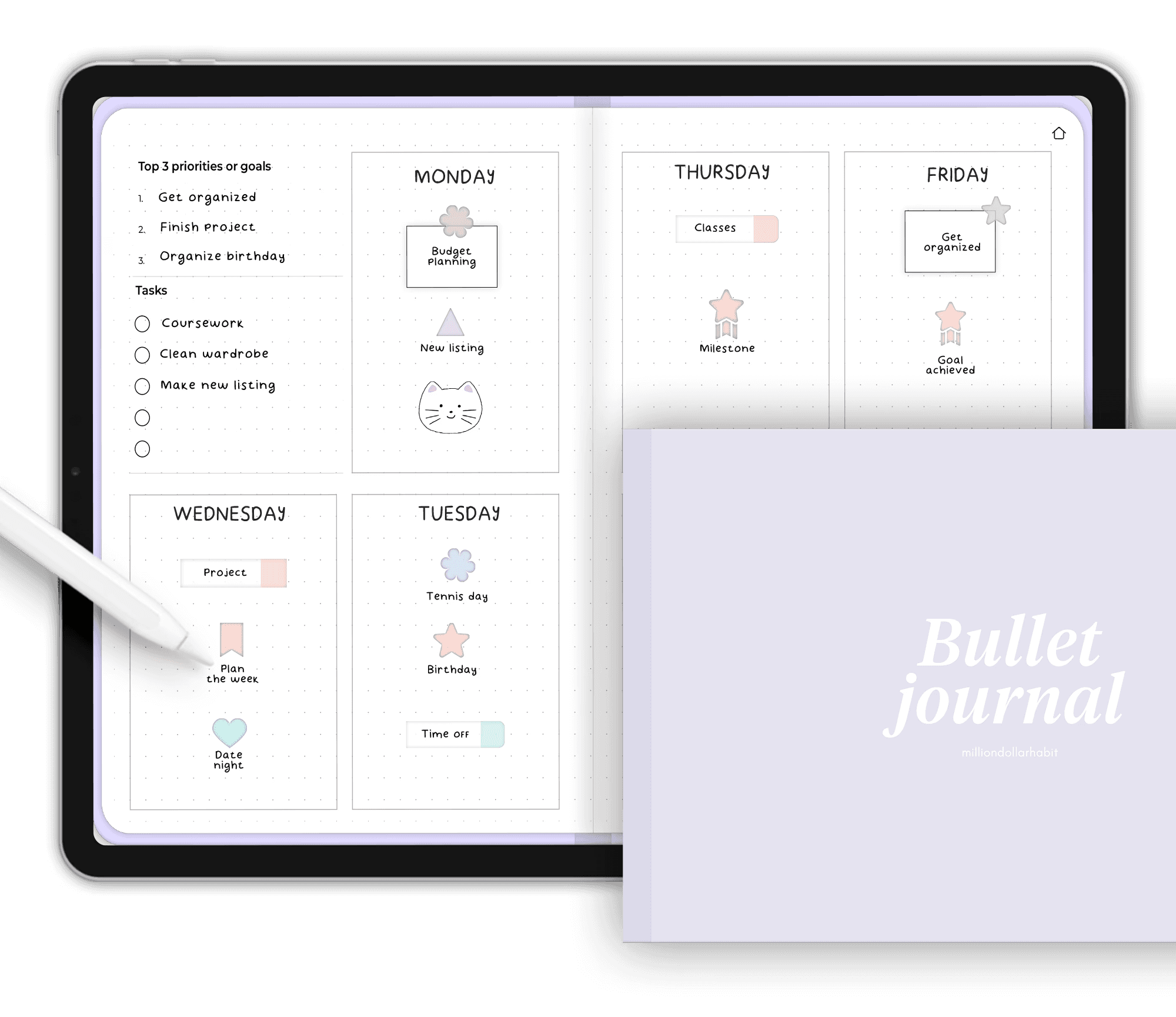
Goodnotes / Notability / Noteshelf
Free Bullet Journal Page Template
Dotted Bullet Journal spread
for digital planning
The Bullet Journal method (often “BuJo”) is a flexible organization system that combines productivity + reflection so you can track the past, organize the present, and plan for the future.
It’s built around one idea: write things down quickly, then review and refine them so you spend time on what matters.
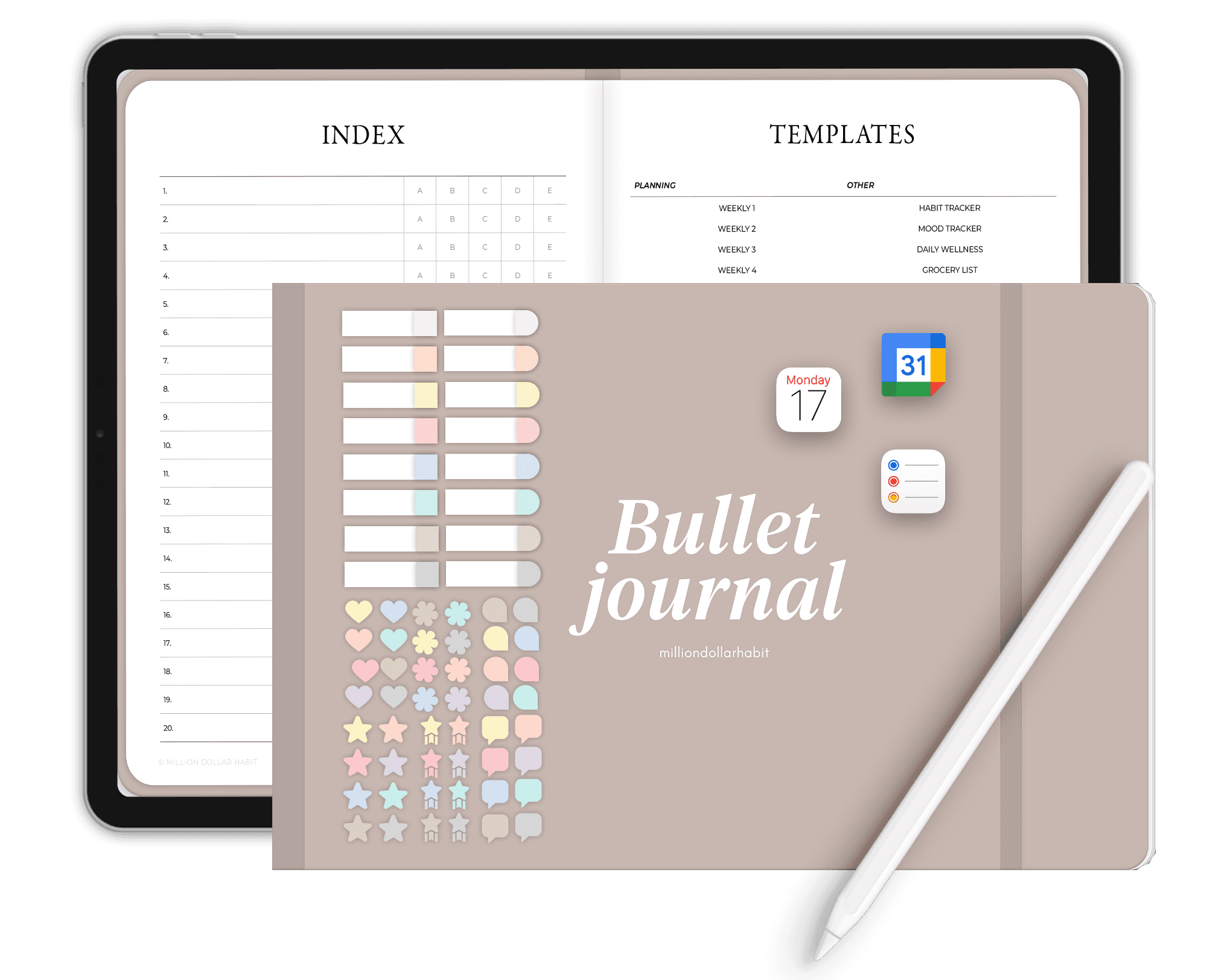
1) Rapid logging (your bullet journal “language”)
Rapid logging is the cornerstone of the method: short entries, written fast, with symbols that tell you what each line is.
At minimum, you’ll use:
Then you add signifiers (small symbols) to label priority, ideas, research, etc.
2) Logs (the structure)
The method usually uses:
Future Log: a forward-looking overview for upcoming months and important dates.
Daily Log: your daily capture page—tasks, notes, events as they happen.
3) Collections (lists/pages for anything)
A collection is any themed page or spread: projects, habits, books, fitness, content ideas, trip planning, anything you keep returning to.
4) Migration (the “secret sauce”)
Migration is the built-in reality check: you review unfinished tasks and either:
That’s why bullet journaling isn’t just “writing lists.” It forces decisions.
Digital bullet journaling keeps the method—but removes the friction:
Infinite pages + reusable layouts (no redrawing the same spreads).
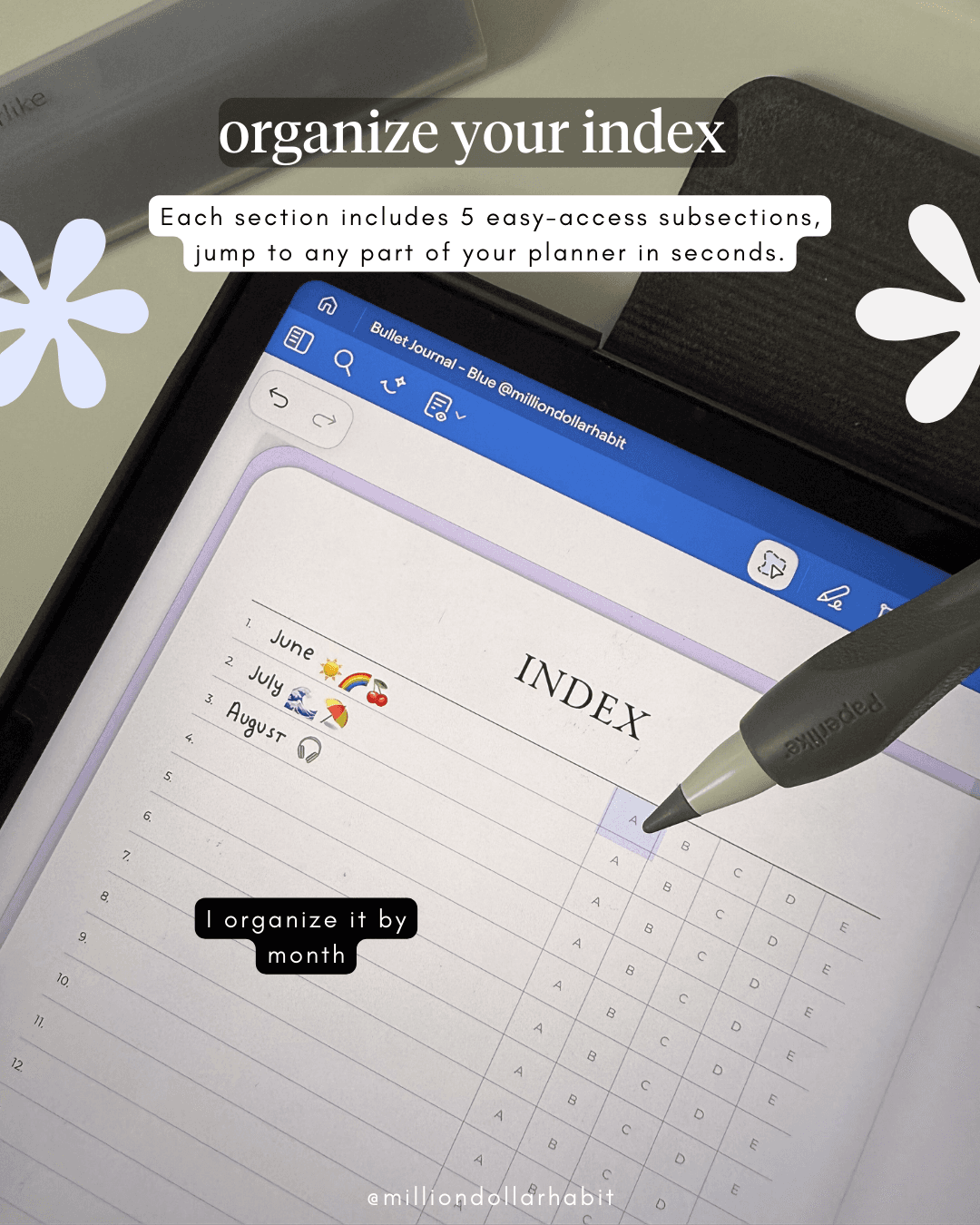
Fast navigation (jump to sections instantly, bookmark favorites, build an outline).
Search (GoodNotes handwriting search can help you find what you wrote).
If you want bullet journaling to be something you actually maintain, digital helps.
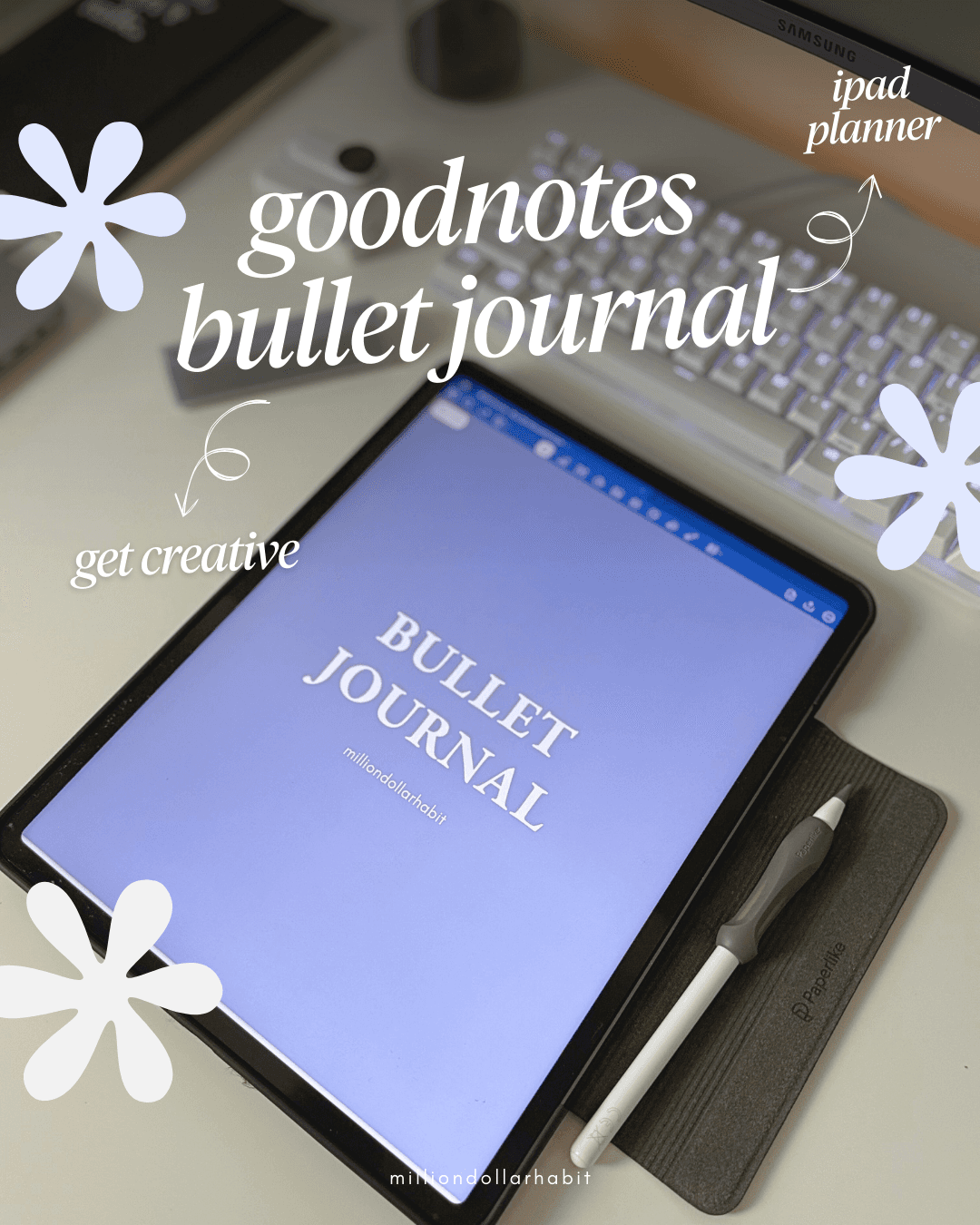
This template is designed for GoodNotes and built to be customizable on purpose:
Important mindset shift:
This is not a “filled-in planner.” It’s a bullet journal system + page library. You build your journal by duplicating and arranging the pages you use most.
Step 1: Import the PDF into GoodNotes
Download your file and import it into GoodNotes (as you would any planner). You can also use any other app like Plannora, Notability, etc.
Step 2: Pick your “minimum viable BuJo” (don’t overbuild)
Start with just 5 core pages/areas:
One collection that matters (habits, projects, content, study—your call)
You can add more later. The point is to start using it this week.
Step 3: Build your journal by duplicating pages
Because your template includes multiple layouts, the easiest workflow is:
Choose your favorite weekly layout
Duplicate it enough times for the month (or the next 4–6 weeks)
Do the same for daily pages only if you actually use dailies
Digital bullet journaling is powerful because repeating pages is instant.
Step 4: Use GoodNotes features that make BuJo faster
GoodNotes supports digital workflows that map perfectly to Bullet Journal:
If your bullet journal feels “too big,” favorites + outline make it feel easy again.
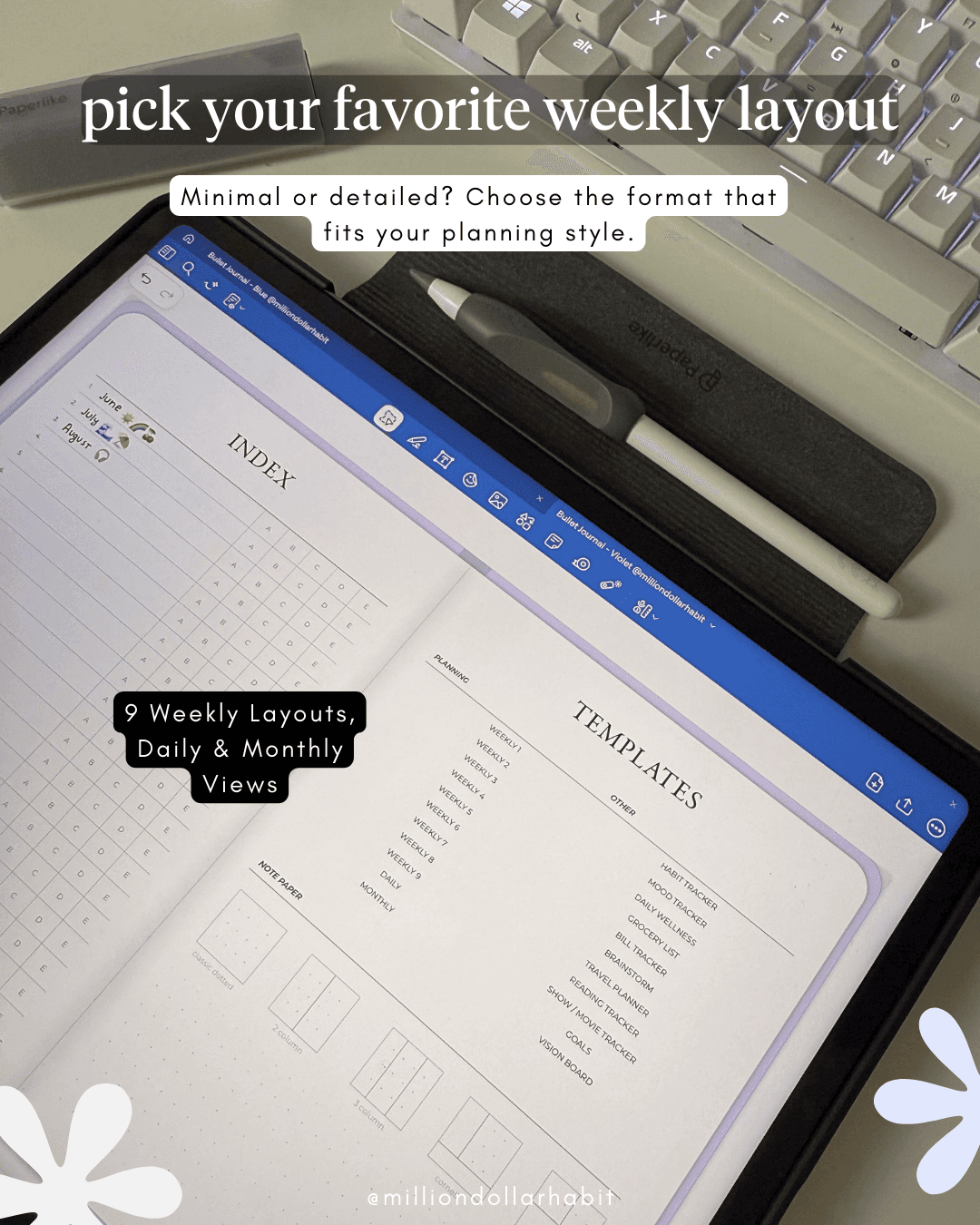
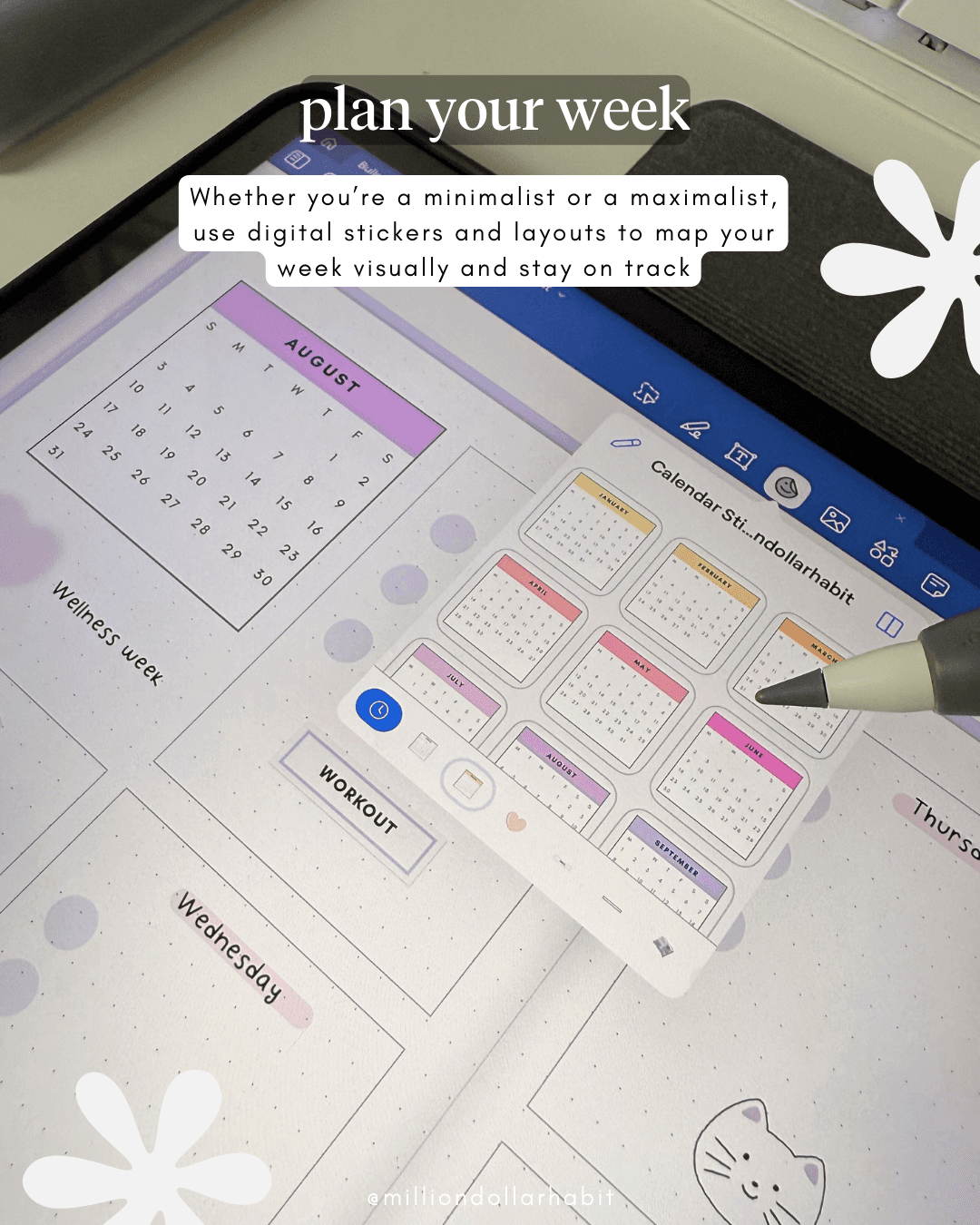

Your weekly pages are built for rapid logging (quick bullets) — you’re just choosing the shape that fits your brain that week.
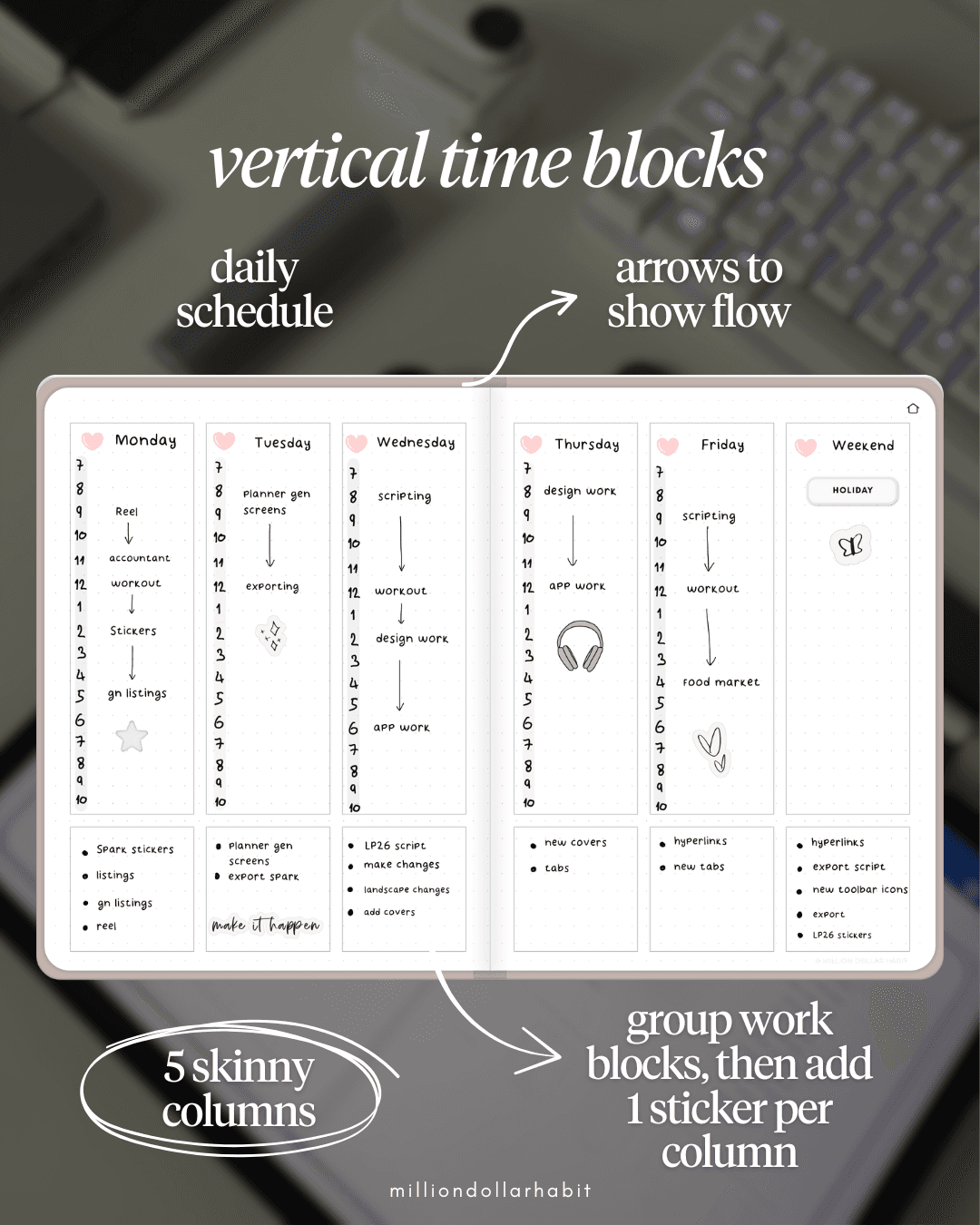
1) Vertical time blocks (best for time-blocking + busy days)
Use this when you want a daily schedule and a clear flow from task to task.
How to fill it in:
Write your appointments / anchors in the time column first.
Add work blocks in between (keep them short and realistic).
Use arrows (↓) to show the flow of your day (what comes next).
At the bottom, add a short “parking lot” list (extra tasks that don’t need a time).
Pro tip: group similar work blocks in each skinny column, then add one sticker per column to visually label the day/theme.
2) Grid cards + calendar (best for students + “short notes” weeks)
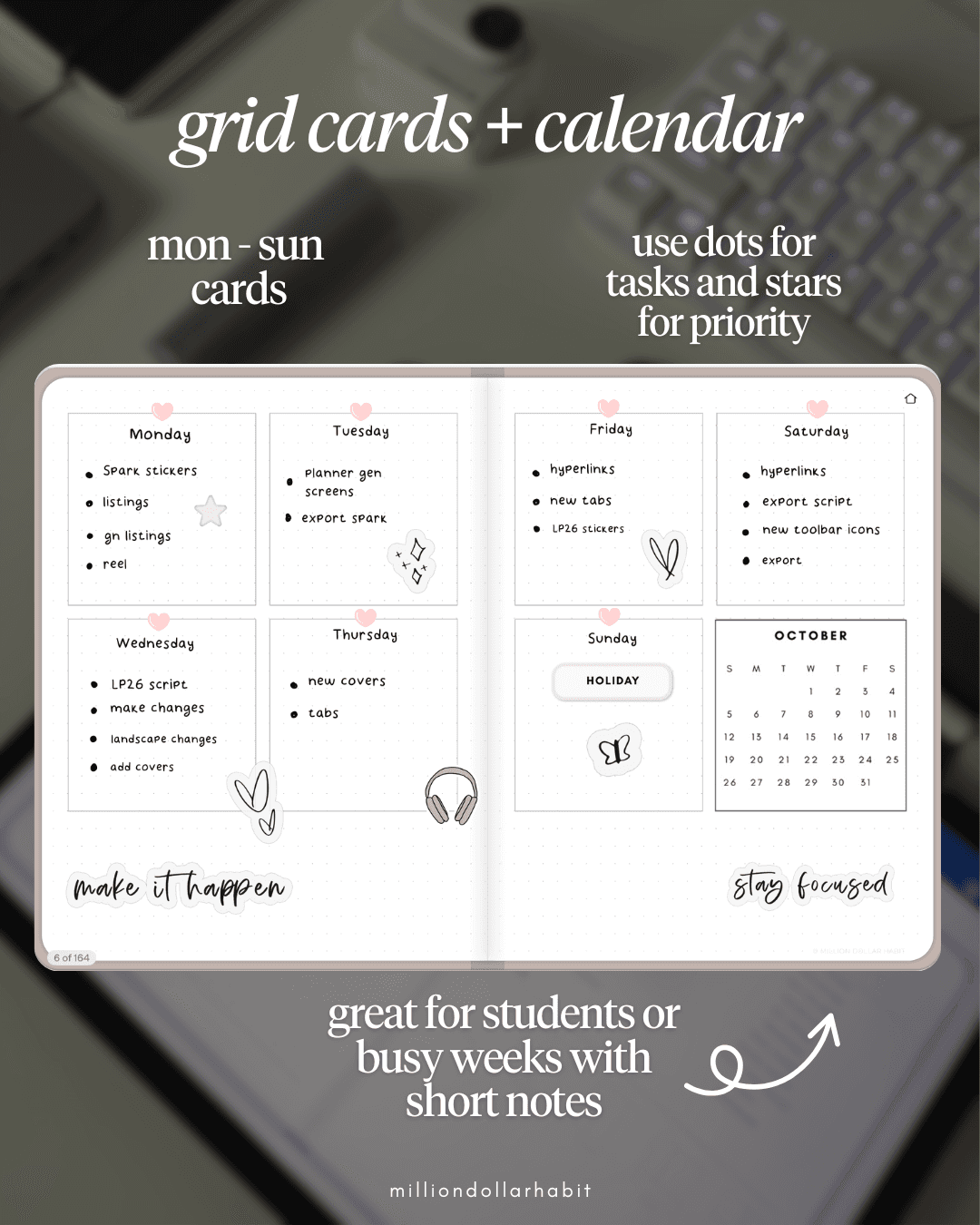
Use this when you don’t need a timeline — you just want clean daily task cards plus a quick month glance.
How to fill it in:
Each day card = a mini to-do list.
Use dots (•) for tasks.
Add a star (★) to mark the one priority that must happen.
Keep it tight: 3–6 items per day is plenty.
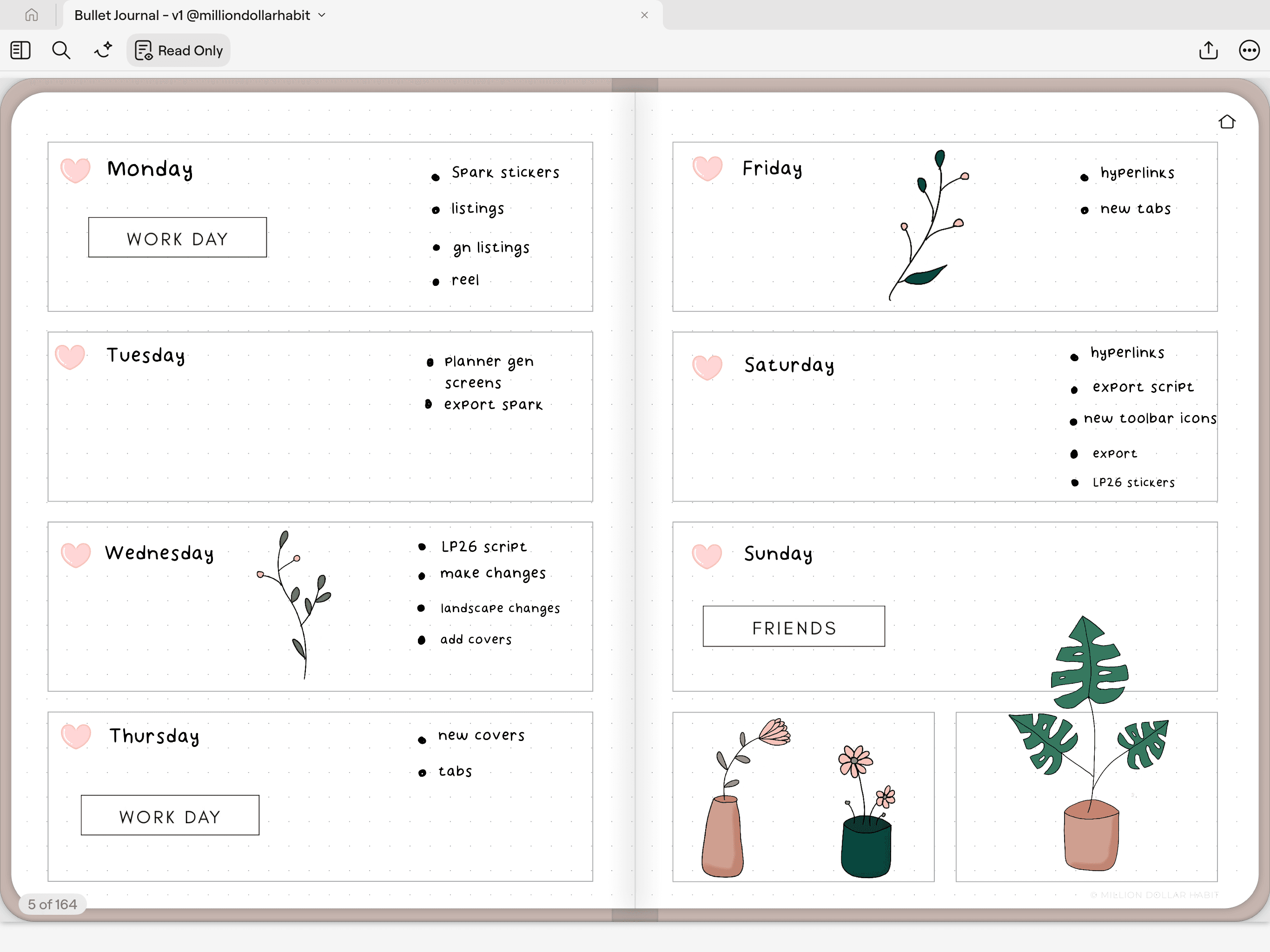
3) Horizontal boxes (best for beginners + simple daily highlights)
Use this when you want the simplest possible setup: one box per day, no pressure.
How to fill it in:
Keep tasks to 3–5 per day (the point is momentum, not perfection).
Left side of the box: one label (Work Day / Friends / Errands)
Right side: a short bullet list of the essentials.
Add a small doodle/sticker if you want — but only after the tasks are down.

The “BuJo rule” that makes all 3 work
At the end of the week, do a 2-minute migration check:
If you still want it → move it to next week
If you don’t → cross it out (done or dropped)
That’s bullet journaling in real life: quick capture, clear priority, and a weekly reset.
Mistake 1: Making it a “pretty project”
If you’re spending more time decorating than planning, simplify:
one pen color
one weekly layout
one tracker
Then earn the stickers.
Mistake 2: Building the perfect setup before you start
Bullet journaling works when it’s used, not when it’s optimized.
Start with the minimum, then evolve.
Mistake 3: No review = no method
Without migration, BuJo becomes a list graveyard
FAQ
How to use hyperlinks?
If links don’t open when you tap: In GoodNotes 5 Read-only mode, you can tap links directly. In Pen mode, long-press the link and choose Open Link. GoodNotes 6 moved away from this flow and you can freely click on links.
What is the bullet journal method?
A flexible system created by Ryder Carroll that combines rapid logging, logs (future/monthly/daily), collections, and migration to organize tasks, events, and notes.
Is a bullet journal a planner or a diary?
Neither. It can include planning and journaling, but it’s primarily a system for capturing and organizing your life in one place.
Can you bullet journal digitally?
Yes—digital bullet journaling keeps the method while adding benefits like reusable pages, easy editing, and fast navigation.
What’s the best app for a digital bullet journal?
GoodNotes is widely used for digital bullet journaling because it’s easy to edit, navigate, and organize pages with bookmarks/outlines, and it supports hyperlinked PDFs.
Instant download
Join the list and stay in the loop. A few times a month, we’ll drop in with honest reviews, practical tips, and free tools to help you write, draw, and work smarter on your iPad.
You’ll also get the password to our freebie library so you can download every digital goodie we’ve created.