If you’re wondering what is a digital planner, it’s simply a planner you use on a device (like an iPad, tablet, phone, or computer) instead of on paper—usually inside a note-taking or PDF-annotation app.
A digital planner lets you plan your week, track habits, and keep notes in one portable place, without printing anything.
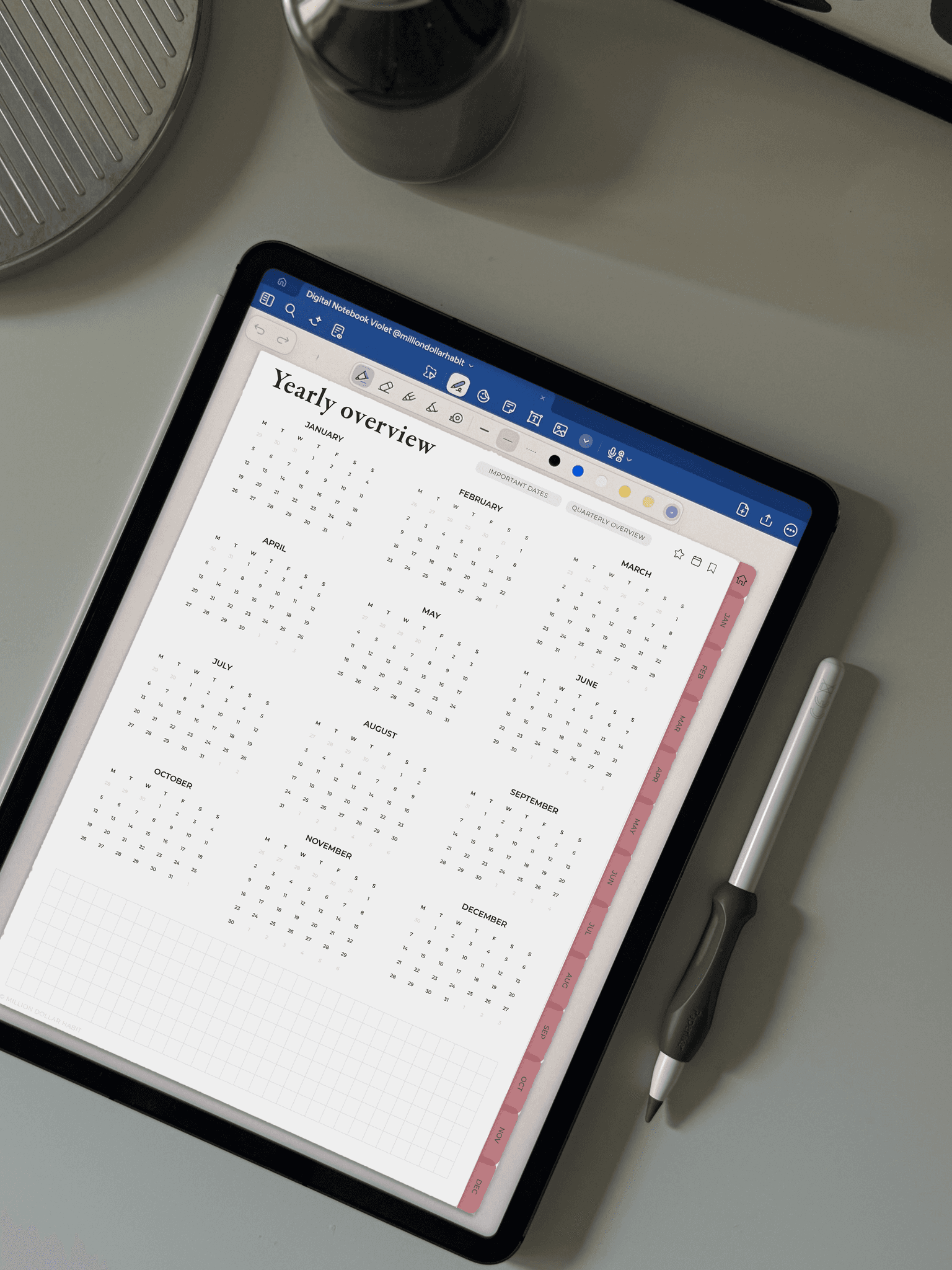
In this guide, you’ll learn exactly what a digital planner is, how it compares to a printable planner, and which option makes the most sense for your lifestyle.
What is a digital planner?
A digital planner is a planner designed to be used digitally—most commonly as a downloadable file (often a PDF) that you write on with a stylus (like Apple Pencil) or type into.
Most digital planners include familiar planning layouts, such as:
Yearly overview
Monthly calendars
Weekly spreads
Daily pages
Habit trackers
Goal pages
Notes pages
Many digital planner PDFs also include clickable tabs (often called “hyperlinks”) that let you jump between sections quickly—like tapping “April” to go to April, or tapping “Weekly” to go straight to your weekly layout.
If you prefer ready-to-use digital planning layouts, you can also explore a full collection here.
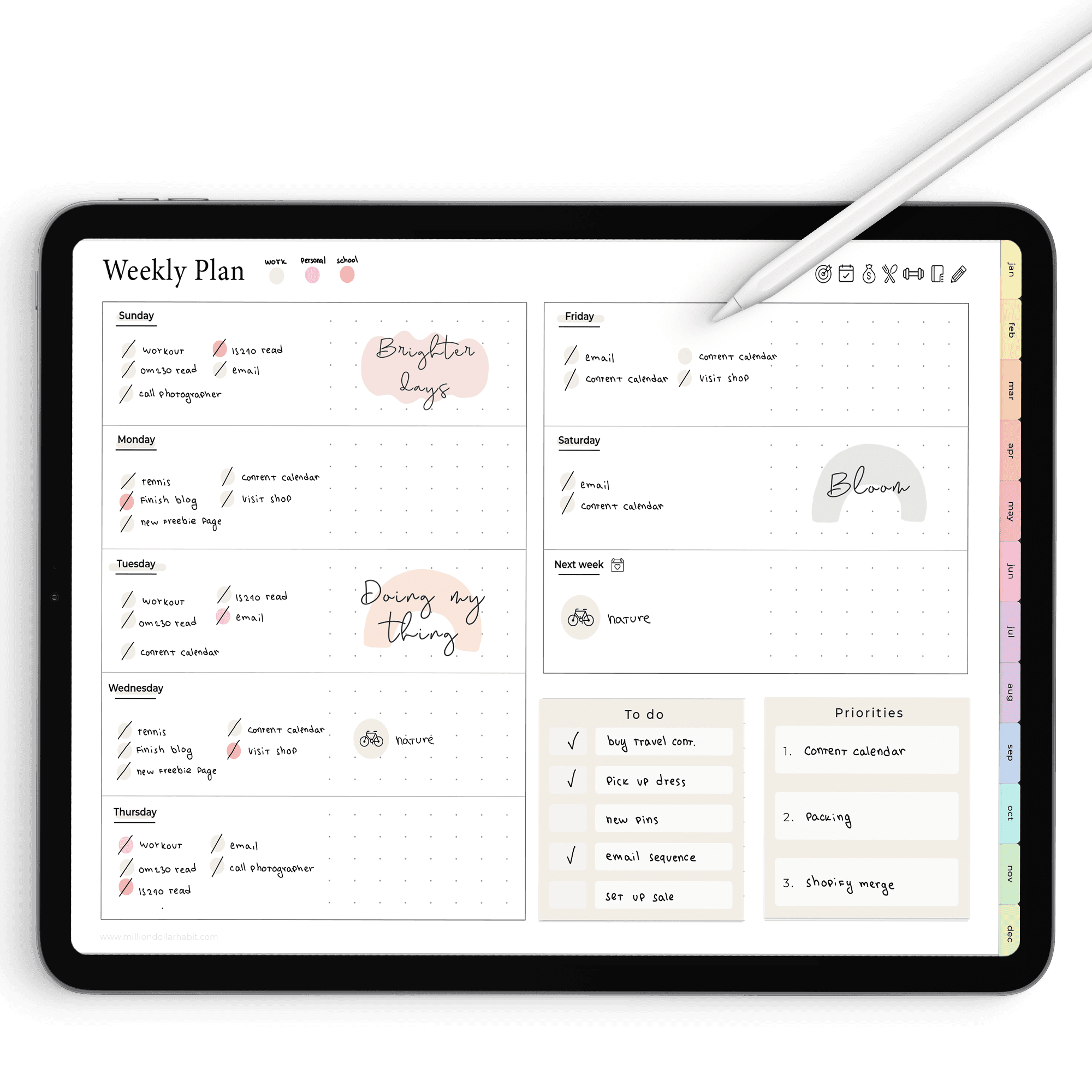
Goodnotes / Notability / Noteshelf
Download a
Free Digital Planner
Undated Weekly Digital Planner
Sunday + Monday start
What is a printable planner?
A printable planner is a digital file (again, usually a PDF), but it’s designed to be printed and used on paper.
You typically:
Download the file
Print the pages at home or at a print shop
Use them in a binder, discbound system, notebook, or clipboard
Write with pen/highlighter like a traditional planner
Printable planners are great if you love the paper feel and want a screen-free planning setup—but they require printing, supplies, and reprinting when you run out of pages or want a fresh reset.
Digital planner vs printable: what’s the difference?
Here’s the practical difference between a digital planner and a printable planner—based on how people actually use them day-to-day.
Setup time
Digital planner: download → open in your app → start writing.
Printable: download → choose printer settings → print → punch/assemble → start writing.
Portability
Digital planner: everything stays in one device, which is ideal for commuting, travel, and planning on the go.
Printable: physical pages are easy to use anywhere, but you have to carry them.
If you plan trips often, a digital setup can be especially convenient.
Editing and flexibility
Digital planner: easy to duplicate pages, rearrange sections, insert extra notes, and keep everything clean.
Printable: changes usually mean reprinting or rewriting.
Navigation
Digital planner: many planners include clickable tabs for fast jumping between sections.
Printable: you navigate by flipping pages and using dividers/tabs physically.
Cost
Digital planner: typically a one-time purchase (plus device/app if you don’t already own them), no ink/paper costs.
Printable: lower upfront cost sometimes, but you’ll pay for paper, ink, and supplies over time.
Space and storage
Digital planner: no physical clutter; easy to archive old planners.
Printable: physical archives take space.
Bottom line: Choose a digital planner if you want portability, quick navigation, and flexible reusing/duplicating. Choose printable if you want tactile, screen-free planning.

Pros and cons of a digital planner
Pros
Reusable layouts: duplicate a weekly spread or tracker instead of reprinting.
Clean edits: rearrange pages or redo layouts without mess.
Everything in one place: planning + notes + projects can live together.
Easy to enhance visually: add stickers, icons, and visual elements.
If you like decorating your pages, digital add-ons can make planning more fun.
Cons
Screen fatigue: not ideal if you want less screen time.
Learning curve: importing files and getting used to digital writing can take a minute.
Distractions: notifications and app-switching can interrupt focus.
Device dependence: battery, storage, and backups matter.
Pros and cons of printable planners
Pros
Tactile + distraction-free: paper planning is focused and satisfying.
No device needed: no battery, no apps, no updates.
Simple habit: pen + paper is easy to stick with.
Cons
Printing takes time and money: ink/paper costs add up.
Harder to reorganize: you can’t “duplicate a page” without printing again.
Storage: physical archives take space.
Which one should you choose?
Use these quick scenarios to decide.
If you travel, commute, or plan across multiple locations → choose a digital planner.
If you love stationery and want a screen-free routine → choose printable.
If you change your system often (extra trackers, new layouts, more notes) → choose a digital planner.
If you want the simplest, most familiar experience → choose printable.
A popular “best of both” approach is hybrid planning:
Use a digital planner for weekly planning, notes, and archiving
Use a few printed pages for desk use (like a daily sheet or checklist)
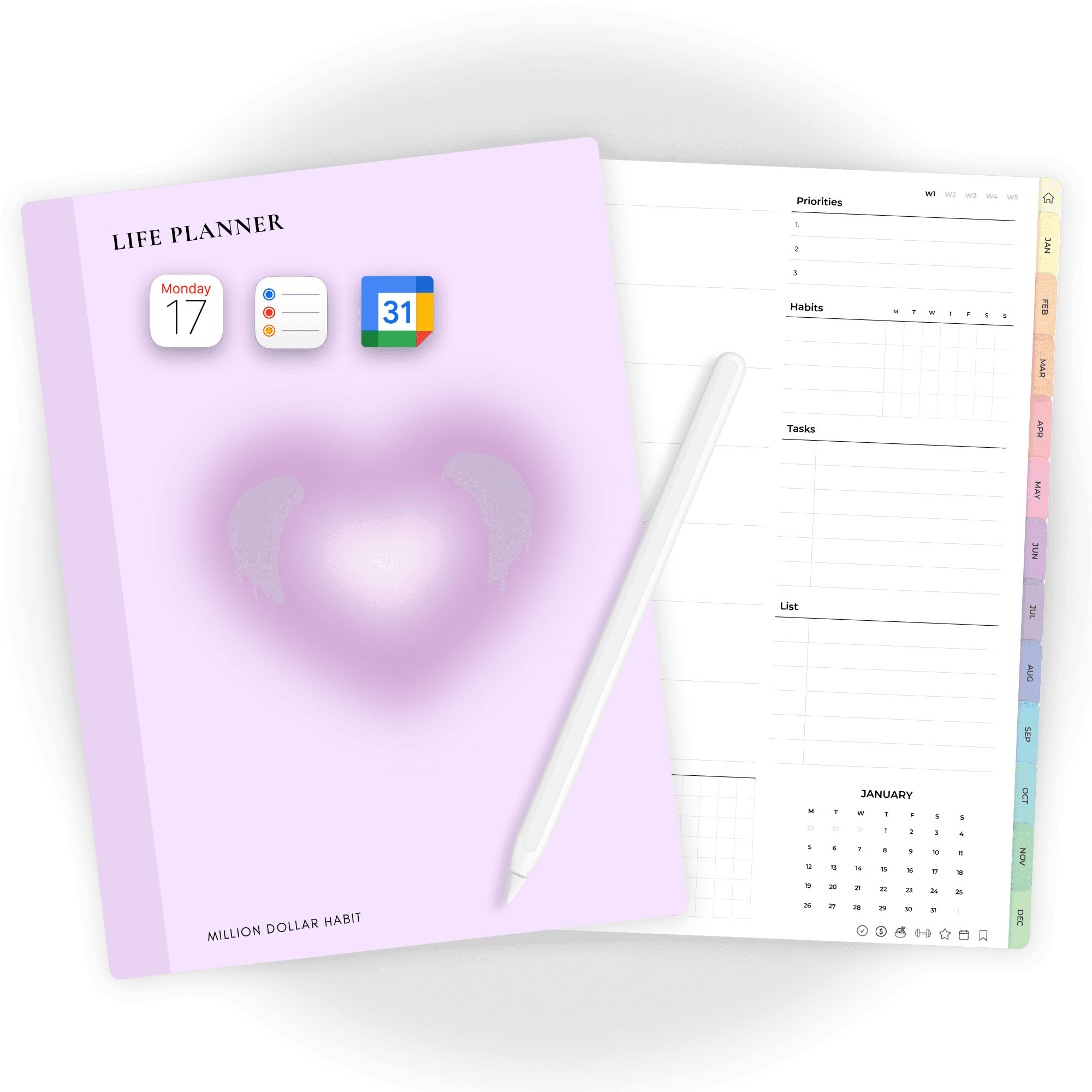
If you want a full-year planning setup, start with a core life-planning format.
How to get started with a digital planner (simple steps)
Pick your device
iPad/tablet is easiest for handwriting with a stylus
Phone/computer works well for typing or quick checks
Choose a planning app
You’ll want something that can open PDFs and let you write, highlight, and navigate through pages.
Open your digital planner
Download the file, then import/open it inside your app.
Start with the basics
Pick one weekly layout and use it consistently.
Add notes as needed (meeting notes, lists, ideas).
Use monthly pages for “big picture” planning.
If you prefer structured daily planning, a dedicated daily format can make consistency easier:
Add helpful extras (optional)
Many people use widgets, icons, or stickers to make planning faster and clearer.
For functional add-ons you can reuse across pages, look here.
Final thoughts
A digital planner is a device-based way to plan your life—often a PDF planner you write on—while a printable planner is designed to be printed and used on paper. The best choice depends on whether you want flexibility and portability (digital) or tactile, screen-free planning (printable).
If you want a simple starting point, grab a free option here.
Want More?
Check out our digital productivity shop, premium templates, and planner bundles for deeper habit tracking and daily success.
FAQ
What exactly is a digital planner?
A digital planner is like a traditional paper planner—but made for your tablet. It’s usually a PDF with hyperlinked tabs, designed to work inside note-taking apps like GoodNotes, Notability, OneNote, or even Notion. You can write on it with your stylus, add stickers, and organize your life without carrying paper everywhere.
How do I use the hyperlinks inside my planner?
Hyperlinks are built-in buttons that let you jump between sections of your planner (like monthly → weekly → daily pages). In GoodNotes and most apps, tap the “read-only” or “presentation” mode (instead of writing mode) to make the links active. Once tapped, they’ll instantly take you to the right page.
What do I need to start digital planning?
At minimum, you’ll need: A tablet (iPad is most common, but Android works too) A stylus (Apple Pencil or similar) A note-taking app (GoodNotes, Notability, OneNote, etc.) And of course, your digital planner file!
Which iPad works best for digital planning?
All modern iPads can run apps like GoodNotes, but you’ll get the best experience with models that support the Apple Pencil (iPad 6th gen and newer, iPad Air 3rd gen and newer, iPad Pro models).
How can I install fonts on my iPad?
You’ll need a font-installation app such as iFont or AnyFont from the App Store. Once installed, you can import your font files, follow the prompts to install a profile, and your new fonts will appear in apps that support custom fonts (like Keynote or Pages).
Can I use an Android tablet instead of an iPad?
Yes! Digital planners are PDFs, so they work on most tablets. Popular Android options include Samsung Notes, Penly, and Xodo. The setup may look a little different, but the experience is very similar.